This guide takes a piece of your own from MuseScore 4 (free) all the way into the player — step by step, with the pitfalls that come up most often in practice. Version basis: MuseScore 4.
Open or set up your piece
If you already have the notation as a MuseScore file, open it via File → Open. If you're starting from scratch, create a new score and enter the notes there — it makes no difference for the export that follows.
File → Export → MusicXML
The File → Export menu opens the export dialog. Choose MusicXML as the file type — there are two options: "Compressed MusicXML files" (.mxl) or "Uncompressed MusicXML files" (.musicxml).
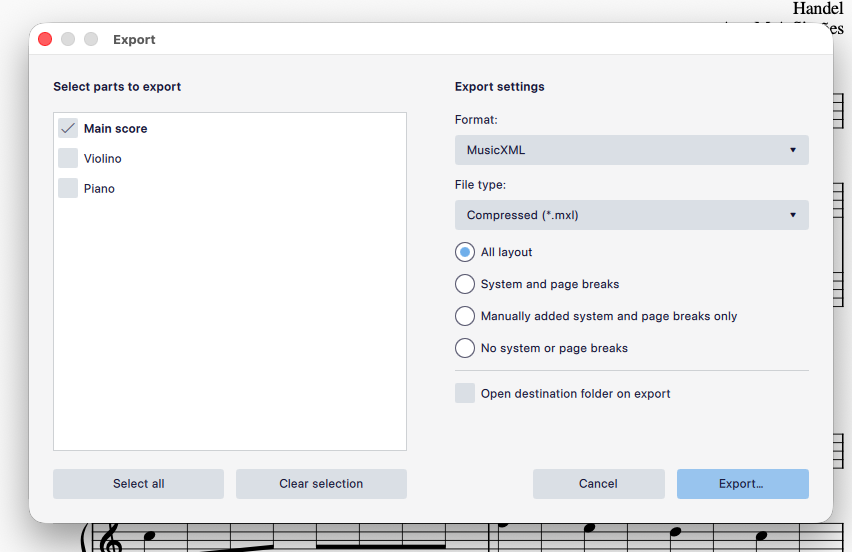
MuseScore Studio 4.7.4, July 2026
Good to know:
.mxl and .musicxml are equivalent for Klavissimo — the app reads both extensions identically on import (.mxl is just packed, so the smaller file). You don't need to think it over, just take whatever MuseScore offers you.
Save
Confirm with Save — MuseScore places the file next to your score. The original stays untouched as its own MuseScore file; the export is just an extra copy for the import.
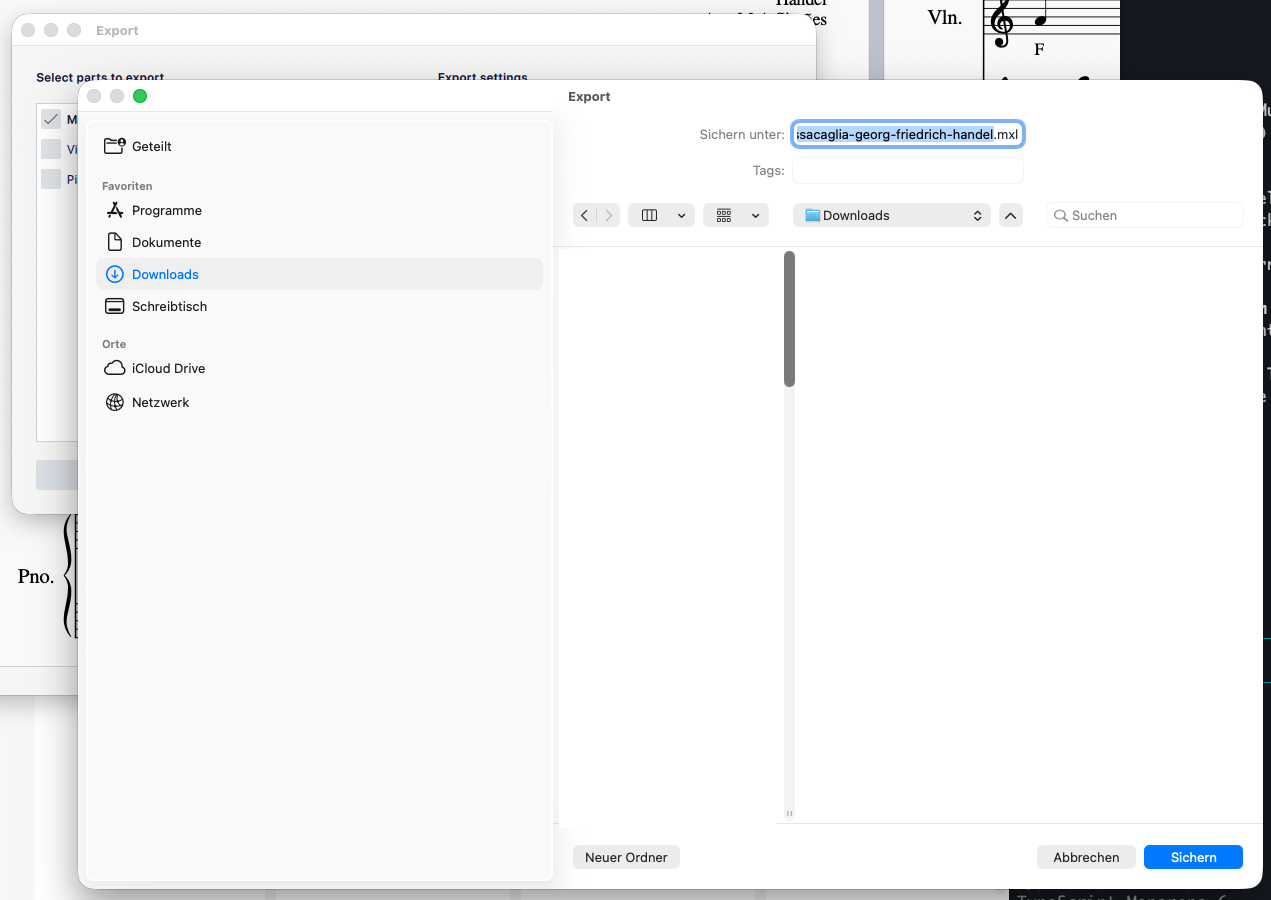
MuseScore Studio 4.7.4, July 2026
Import it into Klavissimo
Under "My pieces" (/pieces), drag the exported file into the drop zone — or click it and choose the file from the dialog. Klavissimo then shows a preview with the sheet music, bar count, recognised notes and an estimated level, before anything is saved.
Pickup bars and repeats — nothing to worry about
Klavissimo detects a pickup bar automatically on import — no extra setting needed. Repeat signs are played out while practising — each repeat counts as its own pass with its own notes, so no beat gets counted twice.
Check instruments and full bars
For a single instrument, it must have 1–2 staves — the usual piano layout of bass and treble clef always qualifies. If the score has more than two instruments, the import fails with an error (only solo + piano, or two piano parts for four hands, are supported). After import, the preview also flags bars whose note values don't match the time signature — usually a typo while setting the notes, quick to check back in MuseScore.
Your data:
The import stays entirely on your device — the file is never uploaded anywhere, and even the preview runs only locally in the browser. Only tapping "Apply" actually adds the piece to your piece library; without device sync (Plus) it stays on this device, and with sync set up the piece automatically travels along to your other devices.
Your data:
The import stays entirely on your device — the file is never uploaded anywhere, and even the preview runs only locally in the browser. Only tapping "Apply" actually adds the piece to your piece library, which stays on this device.
Shorter: straight from musescore.com. If your notes are already there, you don't need to open MuseScore Studio at all for the export.
Click "Download"
On the score page on musescore.com, click "Download".
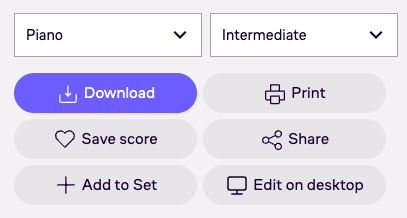
musescore.com, July 2026
Check the format list
A window opens with a list of the available formats.
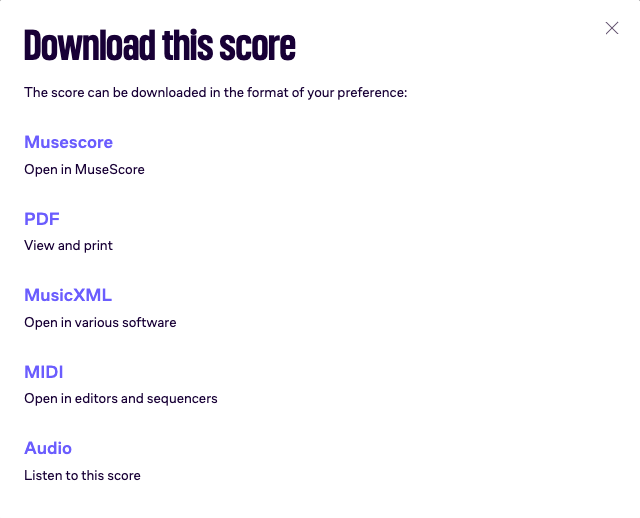
musescore.com, July 2026
Good to know:
If MusicXML is in the list, the piece can be used in Klavissimo. If only PDF is listed, this route doesn't work — the OMR route helps in that case.